

An always-on AI hub is a small computer that stays awake around the clock, so the jobs you hand to an AI assistant, your backups and your shared files keep running when every laptop in the place is shut, and the larger jobs run without slowing your main computer down. Ours is a base-model Mac mini: Apple’s M4 chip, 16 GB of memory and 256 GB of storage. It draws about 4 watts when idle and starts itself again after a power cut.
This article covers what the hub does, which Mac mini to buy, the settings that make it dependable, and what it won’t do.
What an always-on AI hub is
When you use Claude, ChatGPT or Copilot, the AI model runs on the provider’s servers, not on your computer. So the hub doesn’t need to be powerful. It needs to be awake.
That matters because of how scheduled AI work behaves. Take the Claude desktop app. You can tell it to run a task every Monday at 8.30 am, but Anthropic’s documentation says scheduled tasks only run while the app is open and the computer is awake. A run that falls while the computer is asleep is skipped, with one catch-up run when it wakes. A laptop that goes home in a bag at 5 pm is a poor home for those jobs. A computer that stays on, plugged into the office network, is a good one.
Once you have a computer that is always on, it is also the natural place for two other things a small office needs: a backup copy of the work files, and a shared folder.
What a hub does
We use ours for various tasks through the day, and we schedule the larger jobs on it so they don’t slow the main PC down. The details differ for every business. These are the roles a hub can take.
It runs AI jobs on a schedule
The AI desktop app lives on the hub, signed in and set to open at login. Recurring jobs are scheduled there and not on a laptop. One machine owns each job, so nothing runs twice and nothing waits for someone to open a laptop.
It takes the larger jobs off your main computer
The AI model runs in the cloud, but a long job still occupies the computer it was started on. The app is busy, files are being read and written, and you can’t shut the lid until it finishes. Start that job on the hub and your main PC stays free for the work in front of you.
It can keep a second copy of your work files
A hub can copy the work folders from your other computers on a schedule. Set it to keep the older versions of changed and deleted files and not overwrite them. Then a folder deleted by mistake, or a ransomware attack on a laptop, doesn’t wipe the history on the hub.
It can share a folder with the office
A shared folder on the hub shows up as a network drive on the other computers. Mac and Windows both use the same file-sharing standard (SMB), so a Mac mini works as a file server in a Windows office.
It can be driven from another desk
Screen Sharing lets you control the mini from another computer, so it doesn’t need a monitor or keyboard of its own once it is set up. In a mostly-Windows office it also gives you a copy of Safari, for checking how a website looks on Apple devices.
Why a Mac mini
- It uses very little power. Apple lists the M4 Mac mini at 4 watts when idle and 65 watts flat out. Left on all year at the idle figure, that is about 35 kilowatt-hours. At 35 cents a kilowatt-hour it comes to roughly $12 a year; check the rate on your own bill. Real use is a little higher because the jobs do some work, but a hub spends most of its day waiting.
- It comes back by itself. macOS has a setting to start up automatically after a power failure, so a blackout at 2 am doesn’t leave it off until someone notices.
- The server parts are built in. File sharing, remote login, screen sharing, a scheduler and Time Machine backup are all part of macOS. There is no server licence to buy.
- It is small. 12.7 cm square and 5 cm tall. It fits on a shelf beside the router.
What else would do the job
| Option | Good at | Falls short |
|---|---|---|
| An old laptop | You already own it | Sleeps when the lid shuts unless you change its settings, and an older machine may no longer get security updates |
| A Windows mini PC | Suits an all-Windows office; the AI desktop apps come in Windows versions | Needs the same always-on settings, and the apps must reopen by themselves after Windows restarts for an update |
| A NAS (network storage box) | File sharing and backups, with room for several drives | Can’t run the desktop AI apps |
| Cloud-only scheduled tasks | No hardware; they run with every computer off | They can only reach what you have connected online, not a folder on an office computer |
Which Mac mini to buy
We bought the base M4 model. Apple has since released a newer Mac mini with the M6 chip, on sale since September 2026, so there are two generations on the shelf. For a hub, the base model of either is enough. The AI runs in the cloud, so you are not paying for speed.
How the links work
The product links below go to Amazon.com.au and are affiliate links, each marked “(paid link)”. As an Amazon Associate, Digital Greenhouse earns from qualifying purchases. You pay the same price either way.
We bought our Mac mini with our own money. Nobody sent it to us or asked us to write about it. We don’t print prices because Amazon’s change often; the link shows the current one.
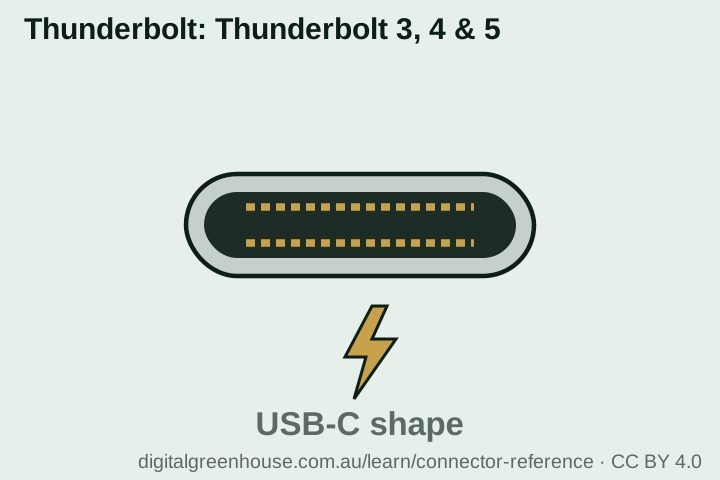 The Thunderbolt ports on the back, from our connector reference
The one we bought
Apple Mac mini, M4 chip, 16 GB memory, 256 GB storage
What we use it for: various tasks through the day, and the larger scheduled jobs, so they don’t slow the main PC down.
- Chip
- Apple M4, 10-core
- Memory
- 16 GB
- Storage
- 256 GB SSD
- Network
- Gigabit Ethernet, Wi-Fi 6E
- Ports
- 3 × Thunderbolt 4, 2 × USB-C, HDMI
- Idle power
- About 4 W
Know before you buy: this is the 2024 model, so what is for sale is the stock retailers have left. When we checked on 1 October 2026, the Amazon.com.au listing was sold and shipped by a marketplace seller, not by Amazon itself, so look at who the seller is before you order. The 256 GB drive fills quickly once backups land on it; plan on an external drive. Memory can’t be added to a Mac mini later, so buy the amount you need.
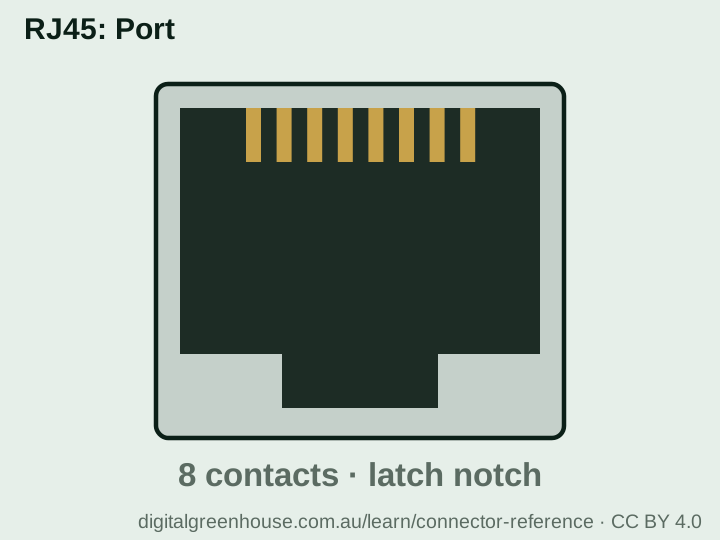 The network port, from our connector reference
The current equivalent
Apple Mac mini (2026), M6 chip, 16 GB memory, 256 GB storage
Why it is here: it is the closest current model to ours. Same size, same 16 GB and 256 GB, with Apple’s newer chip and a faster network port.
- Chip
- Apple M6, 12-core
- Memory
- 16 GB
- Storage
- 256 GB SSD
- Network
- 2.5Gb Ethernet, Wi-Fi 7
- Ports
- 3 × Thunderbolt 4, 2 × USB-C, HDMI
- Idle power
- About 4 W
Know before you buy: for hub duty the faster chip changes little, because the AI runs in the cloud. What the newer model gives you is more years of macOS updates ahead of it and the 2.5Gb network port, which only helps if your router or switch has 2.5Gb ports too. It has the same 256 GB limit as ours. When we checked on 1 October 2026, this listing was sold and shipped by Amazon AU.
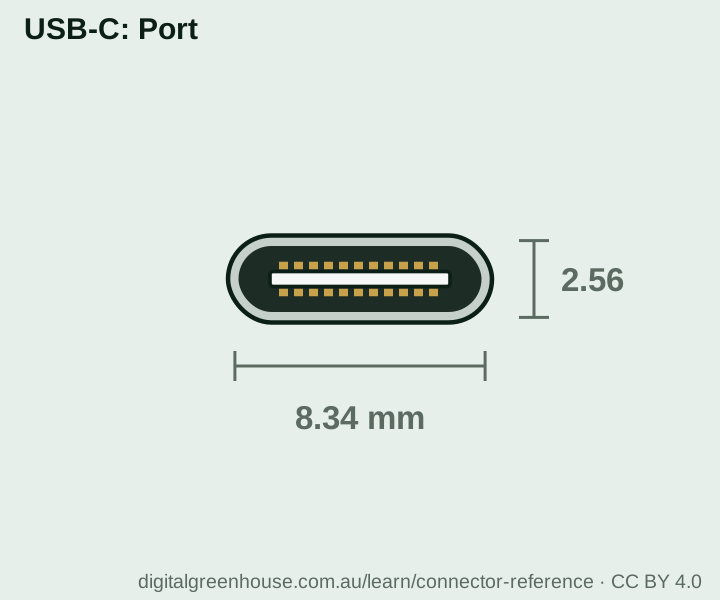 The front ports, from our connector reference
More room inside
Apple Mac mini (2026), M6 chip, 16 GB memory, 512 GB storage
Why it is here: the same machine with twice the internal storage, for a hub that will also hold a synced copy of your cloud files or a few years of documents.
- Chip
- Apple M6, 12-core
- Memory
- 16 GB
- Storage
- 512 GB SSD
- Network
- 2.5Gb Ethernet, Wi-Fi 7
Know before you buy: 512 GB is more comfortable, but it still isn’t a backup store for a whole office. If the hub will take backups of several computers, put the money into an external drive and keep the base model.
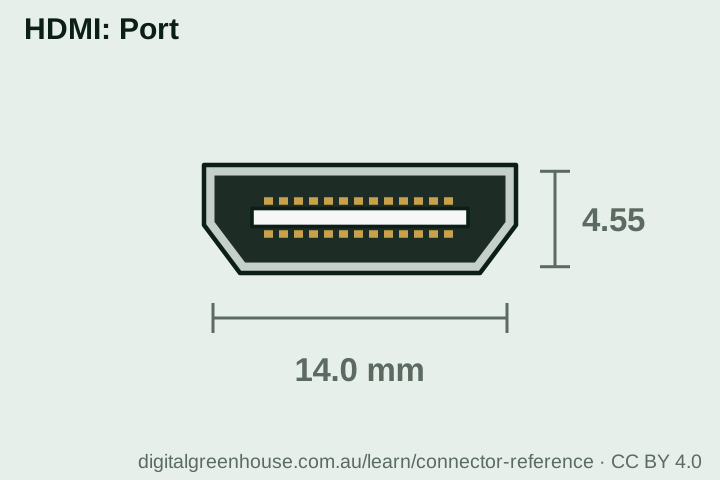 The monitor port, from our connector reference
Headroom for local AI
Apple Mac mini (2026), M6 chip, 24 GB memory, 512 GB storage
Why it is here: if you want to run AI models on the machine itself, and not only reach the cloud ones, memory is the figure that matters. This is the step up from 16 GB.
- Chip
- Apple M6, 12-core
- Memory
- 24 GB
- Storage
- 512 GB SSD
- Network
- 2.5Gb Ethernet, Wi-Fi 7
Know before you buy: more memory lets you load larger local models than a 16 GB machine can. It does not turn the mini into a replacement for Claude, ChatGPT or Copilot on difficult work. Apple builds the M6 model with up to 32 GB, and the dearer Mac mini with the M5 Pro chip (paid link, Amazon AU) starts at 24 GB and can be ordered from Apple with up to 64 GB. If the hub will only schedule cloud AI jobs, this is more machine than you need.
Not sure which port is which? The connector reference has a drawing and a photo of each one, including Thunderbolt, HDMI, USB-C and the network port.
What else you’ll need
- An external drive. The internal drive is for macOS and the apps. Backups and Time Machine go on an external USB-C drive. Buy one larger than everything you plan to back up.
- A network cable to the router. Wi-Fi works, but a cable is steadier for large backups.
- A monitor, keyboard and mouse for the first hour. None come in the box. The monitor plugs into the HDMI port. After setup you can run the mini from another computer with Screen Sharing.
- A UPS, if blackouts are common where you are. The mini has no battery. A surge-protected powerboard protects against spikes; it keeps nothing running when the power goes out.
The settings that make it a hub
Out of the box a Mac mini behaves like a desktop computer: it goes to sleep and stays off after a power cut. These eight steps change that. The names are as they appear in System Settings on macOS 26.
- Stop it sleeping. In Energy, turn on “Prevent automatic sleeping when the display is off”, “Wake for network access” and “Start up automatically after a power failure”. The display can still sleep; that saves power and affects nothing.
- Give it a fixed address. Give the mini a clear name in General › Sharing, then reserve its IP address in your router’s settings, so the other computers always find it in the same place.
- Turn on only the sharing you will use. In General › Sharing: File Sharing for the shared folder, Screen Sharing to control it from another computer, and Remote Login if you want scripted backups. Limit each one to your own user account.
- Install the AI app and make it start itself. Sign in, then add the app under General › Login Items so it reopens after a restart. Schedule each recurring job on this machine only. The same job scheduled on two computers runs twice.
- Set up backups in both directions. The hub takes copies of your work computers. Something else has to take a copy of the hub: Time Machine to the external drive, plus one copy kept somewhere other than the office. Three copies, on two kinds of storage, with one offsite. Regular backups are one of the Essential Eight.
- Lock it down. Turn the firewall on in Network › Firewall and leave automatic updates on. Don’t forward any ports from the internet to the mini. Keep it reachable only from inside your own network.
- Decide about disk encryption. FileVault encrypts the drive, which is what you want when the mini holds copies of client files. The catch is that after a restart an encrypted Mac waits for a password before anything runs, and automatic login can’t be used with FileVault on. From macOS 26, Apple lets you unlock it over the network if Remote Login is on, so you don’t have to be standing in front of it, but a person still has to type the password. For a hub that holds business files, encryption is worth typing a password after a power cut.
- Test it. Restart the mini and walk away. Then check that the shared folder is back, the AI app has reopened, you can reach the screen from another computer and a backup run completes. Finish by restoring one file from the backup, because a backup you have never restored from is a guess.
What it won’t do
- It won’t run the big AI models itself. A 16 GB Mac mini can run small open models on its own hardware. Larger local models need more memory than 16 GB leaves free. For everyday work the hub schedules jobs on the cloud assistants and leaves the thinking to them.
- It doesn’t keep your data in the building. Whatever an AI assistant reads to do its job is sent to the provider’s servers. Having the hub in your office changes where the job is scheduled, not where the AI processes it. Our plan guides list where Claude, ChatGPT and Copilot store data and which plans train on it.
- It isn’t a complete backup. It is a second copy in the same room as the first. Fire, theft or a burst pipe takes both. You still need a copy somewhere else.
- It won’t supervise itself. A job that runs at 3 am has nobody watching it. Give each job the narrowest access that lets it do its work, have it write a log, and keep anything that sends an email, pays a bill or deletes a file waiting for a person to approve it. Write those rules into your team AI usage policy.
- It won’t ride through a blackout. It restarts when the power returns. Anything that was running when the power dropped is lost unless there is a UPS.
Want a hub like this in your office?
Choosing the hardware, supplying it and setting up the sharing, backups and security is part of our I.T. consulting work for Sydney businesses. Deciding which jobs to hand to an AI assistant, and how to do it safely, is what our AI workshops cover. Tell us what you want the hub to do and we’ll scope it.
Common questions
Do I need an always-on computer to use AI?
How much electricity does a Mac mini use if it is left on all the time?
Can a Mac mini with 16 GB of memory run AI models locally?
Will a Mac mini hub work in an office that uses Windows?
Is it safe to leave a computer running all day and night?
Do you get paid if I buy a Mac mini through these links?
Sources
Read on 1 October 2026. A disclosure, since it is relevant: Claude helped research and draft this page. The specifications come from Apple’s published pages and the setup from our own machine, not from the model’s memory.
- Apple, Mac mini (2024) technical specifications and Mac mini technical specifications (current models)
- Apple, Mac mini power consumption and thermal output
- Apple Platform Support, Intro to FileVault and Firewall
- Anthropic, Scheduled tasks in the Claude desktop app