USB, the complete guide
Nearly all USB confusion comes from treating three separate things as one. Every USB connection has a shape (the connector — the cards above), a speed (the USB version it talks) and a power level (how it charges). They are specified separately and they mix freely: a USB-C plug can be running a 25-year-old speed, and a 25-year-old USB-A plug can be on the end of a modern fast charger. Work out each one on its own and everything else falls into place.
1. Every USB version, in order
Each version is backwards compatible: a new device on an old port works, at the old port’s speed. USB 1.0 barely shipped; USB 1.1 was the first version people actually used, for keyboards, mice and the first flash drives. USB 2.0 is still what every keyboard, mouse, printer and webcam uses today, because none of them need more.
2. The naming mess, decoded
The speeds are simple. The names are not, because the 5 Gbit/s speed has been officially renamed three times and the 10 Gbit/s speed twice. All of these labels are in shops right now:
So “USB 3.0”, “USB 3.1 Gen 1” and “USB 3.2 Gen 1” are the same thing, and a box that says only “USB 3.2” tells you nothing: it could be 5, 10 or 20 Gbit/s. The current official names are just the speed — “USB 5Gbps”, “USB 10Gbps” and so on. Ignore the version number and look for the figure in Gbps.
3. What the speeds mean in practice
Speeds are quoted in bits; files are measured in bytes. Divide by eight, then take off some overhead:
A spinning hard drive cannot read or write much faster than 200 MB/s, so 5 Gbit/s is already more than any hard drive can use — paying for a 10 Gbit/s enclosure for one is wasted money. The jump that matters is from USB 2.0 to anything newer: if a backup to an external drive is crawling at 30 MB/s, it has fallen back to USB 2.0, and the cause is nearly always a black port, a non-blue cable or a tired connector.
4. Which connector can carry which speed
“Can carry” is the ceiling, not a guarantee. Plenty of USB-C ports — on budget phones, keyboards, and most cheap charging cables — are wired for USB 2.0 only.
5. Power and charging
Every USB port supplies 5 volts. What changed over the years is how much current a device is allowed to draw, and — with Power Delivery — whether the voltage can be raised.
- A bigger charger never forces more power in. With Power Delivery the device asks for a voltage and current and the charger agrees or offers less. A 100 W laptop charger is perfectly safe on a phone.
- The cable is part of the deal. An ordinary USB-C cable is good for 3 A (60 W). 100 W and 240 W need a cable with a chip in the plug — an “e-marker” — that tells the charger it can take 5 A. With the wrong cable a 100 W charger quietly drops to 60 W.
- Portable hard drives sit right at the limit. A 2.5-inch drive can want close to 1 A for a moment as it spins up — twice what a USB 2.0 port must supply. That is why older drives came with a two-headed “Y” cable, and why a drive that clicks and disconnects often behaves on a blue port or a shorter cable.
- Some chargers speak their own dialect. Qualcomm Quick Charge and various phone makers’ fast-charging schemes pre-date Power Delivery. Off-brand combinations still charge — at plain 5 V.
6. USB-C: one plug, many possibilities
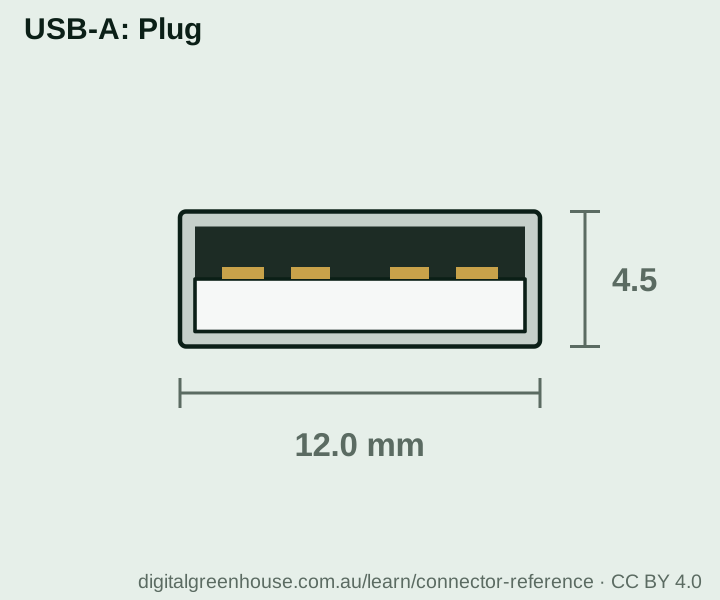
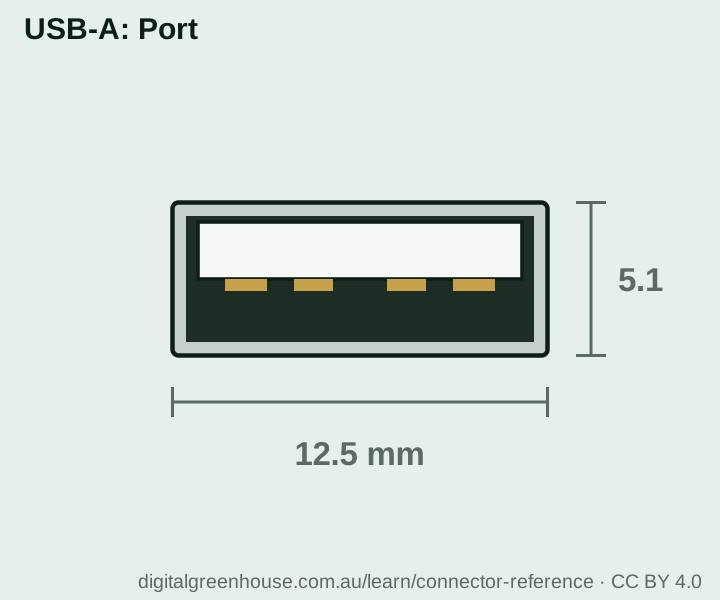
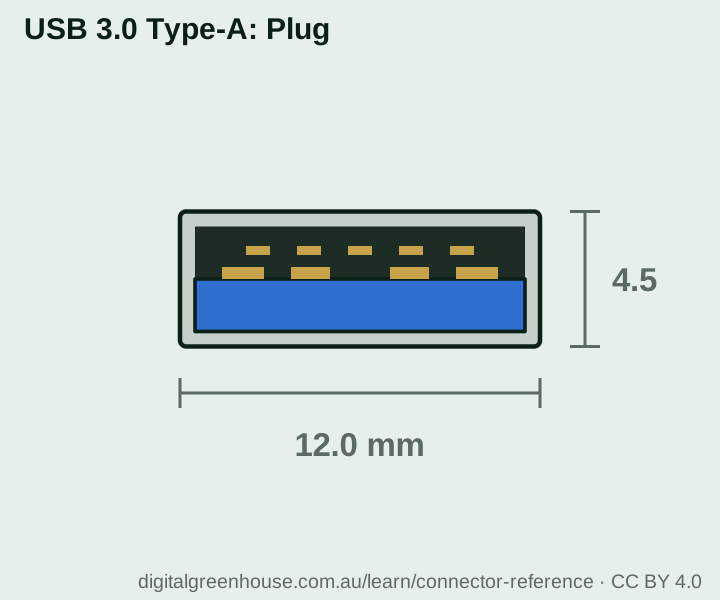
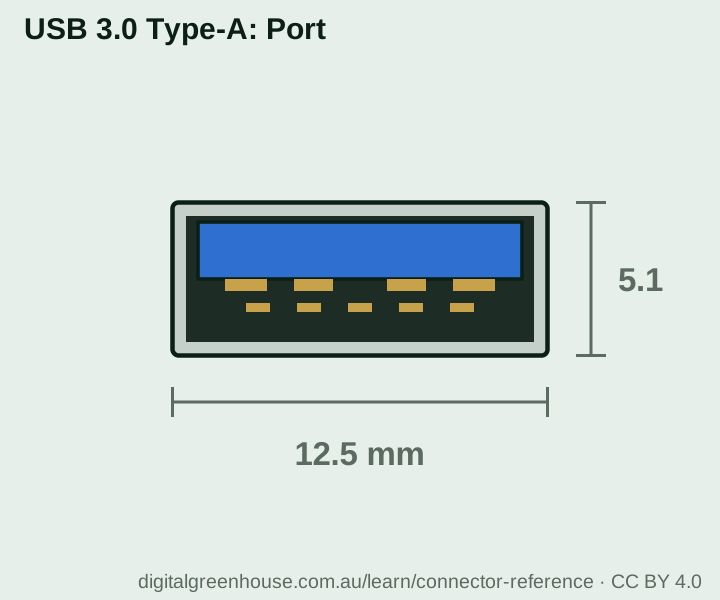
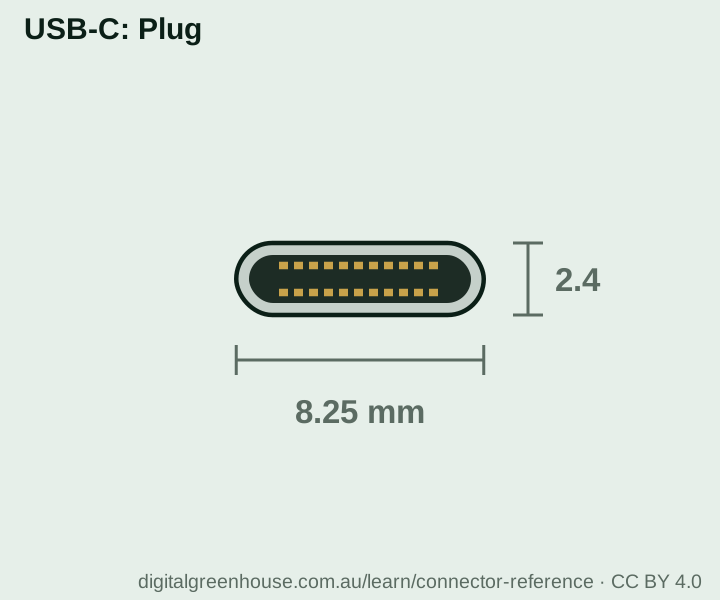
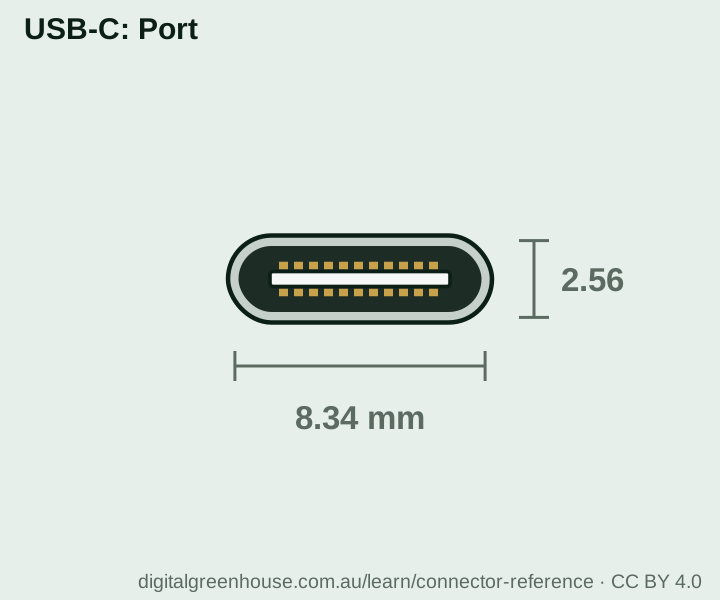
USB-C has 24 contacts where USB-A has four, and what they are used for is decided by negotiation every time you plug in. A given port or cable may or may not support each of these, and nothing about the shape tells you:
- Data speed — anything from USB 2.0 to 80 Gbit/s.
- Power — from 2.5 W to 240 W, in either direction. A laptop can charge a phone, or a monitor can charge the laptop, down the same cable.
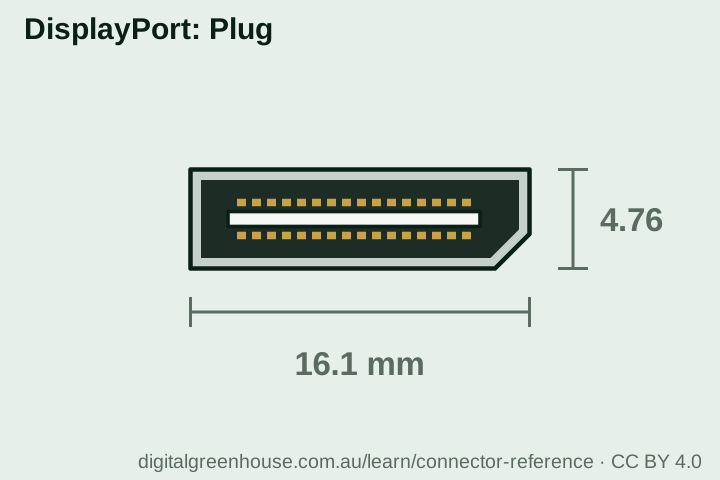
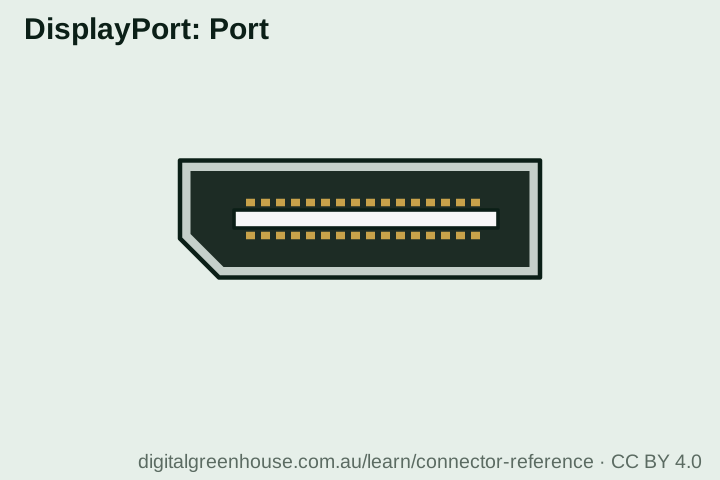
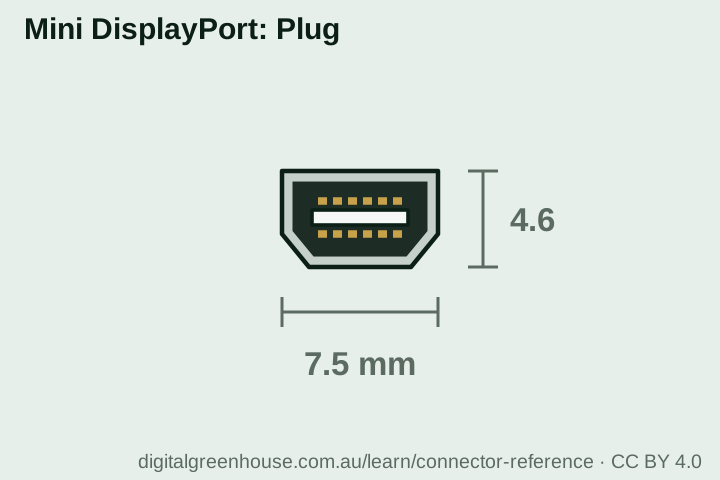
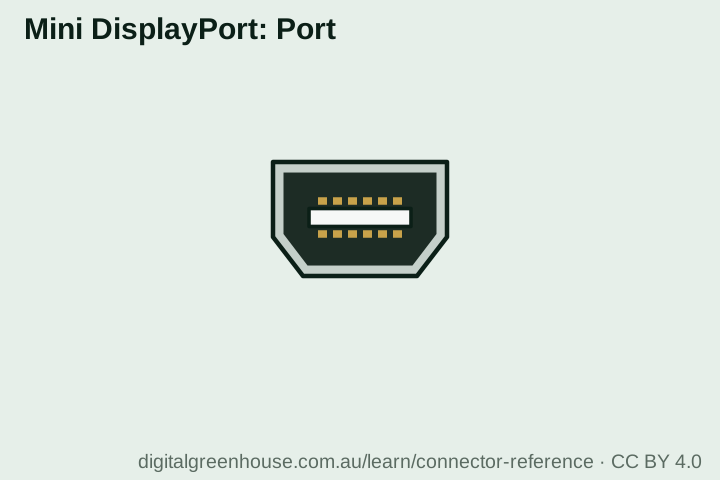
- Video — “DisplayPort Alternate Mode” sends a monitor signal over the same plug. This is how single-cable docks and USB-C monitors work. Many phones and cheaper laptops leave it out.
- Thunderbolt — a faster, stricter superset. See below.
Cable length is a real limit. A passive USB-C cable can be up to 4 m at USB 2.0 speed, about 2 m at 5 Gbit/s, 1 m at 10 Gbit/s and only 0.8 m at 40 Gbit/s. So a long, thin, cheap USB-C cable is almost certainly USB 2.0 and charging only — fine for a phone charger, useless for a dock or an SSD. If a USB-C monitor or drive “doesn’t work”, swap the cable for the short thick one it came with before anything else.
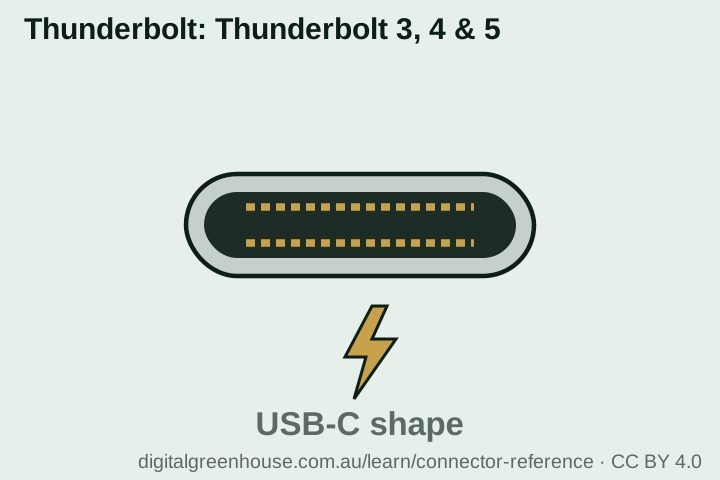
What to look for. Certified cables and ports carry a logo with the speed and wattage printed on it — “40Gbps”, “240W”. A small D-shaped DisplayPort logo beside a port means it does video. A lightning bolt means Thunderbolt. No markings at all usually means the basics: USB 2.0 and modest charging.
7. Thunderbolt and USB
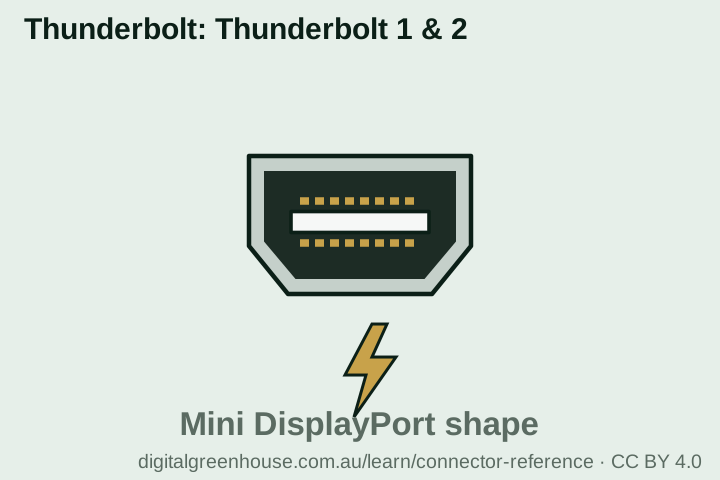
USB4 was built on Thunderbolt 3, so the two have largely converged. The practical rule: a Thunderbolt port is always also a full USB-C port, but a USB-C port is not necessarily Thunderbolt. A Thunderbolt dock or drive plugged into a plain USB-C port will either run slowly or not at all. Thunderbolt 1 and 2 devices need Apple’s Thunderbolt 3 to Thunderbolt 2 adapter to reach a modern machine.
8. Hosts, devices and On-The-Go
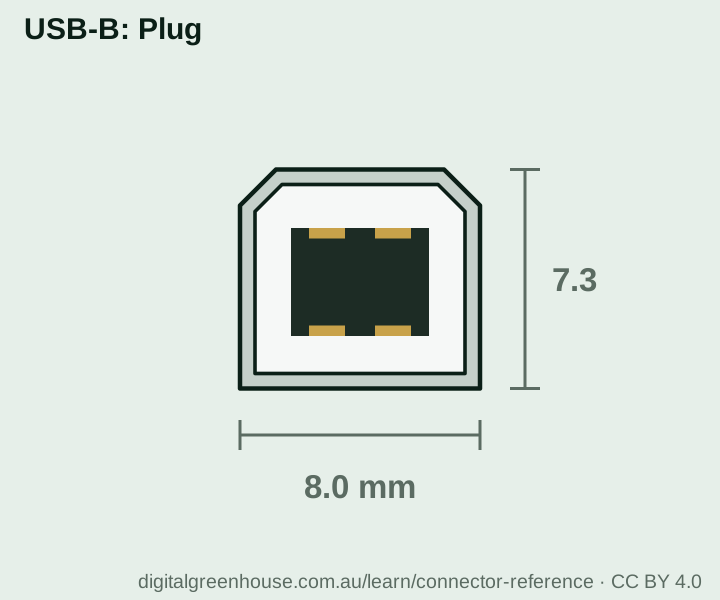
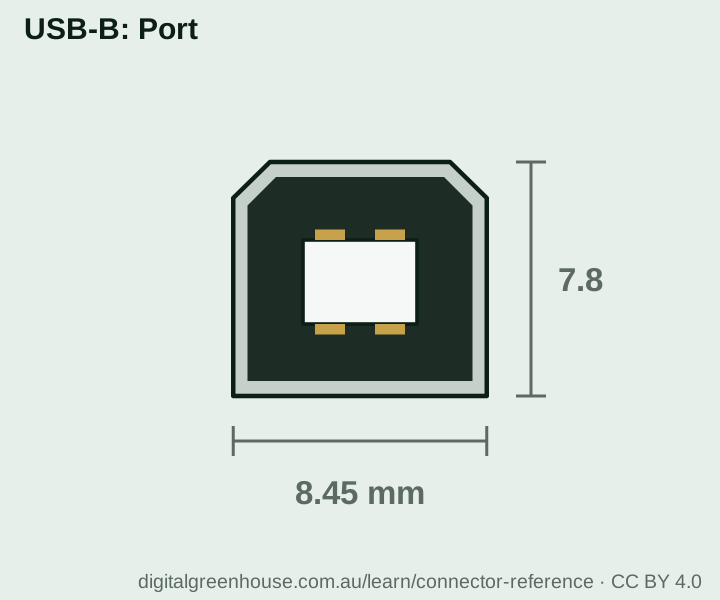
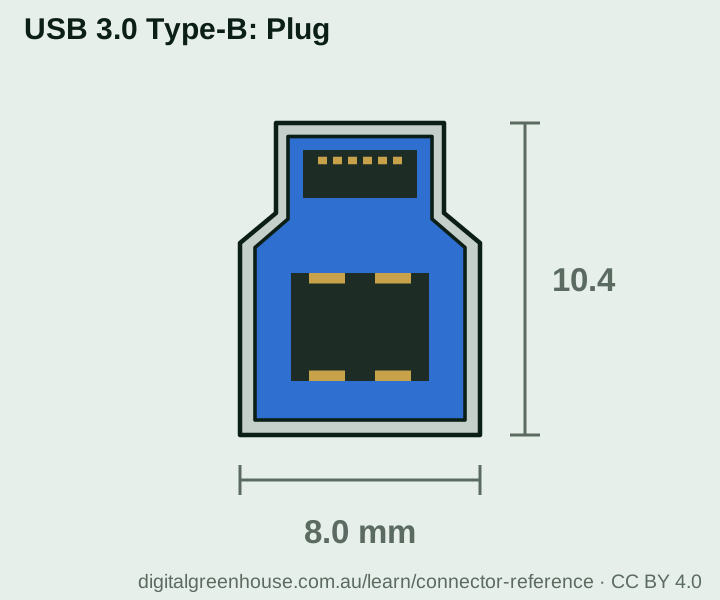
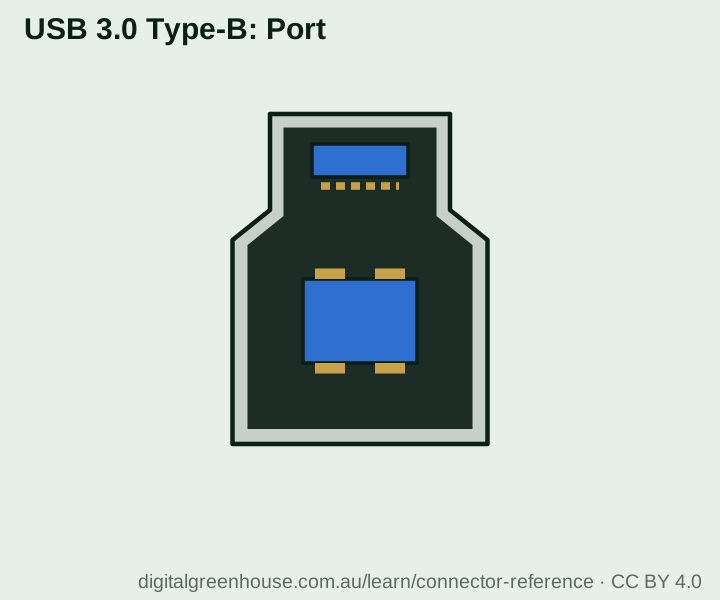
Classic USB is lopsided by design: one host (the computer) runs the show and the devices answer. The connectors enforce it — A plugs go towards the host, B plugs towards the device — which is why you cannot join two computers with an A-to-A cable, and should never try: it shorts their two power supplies together.
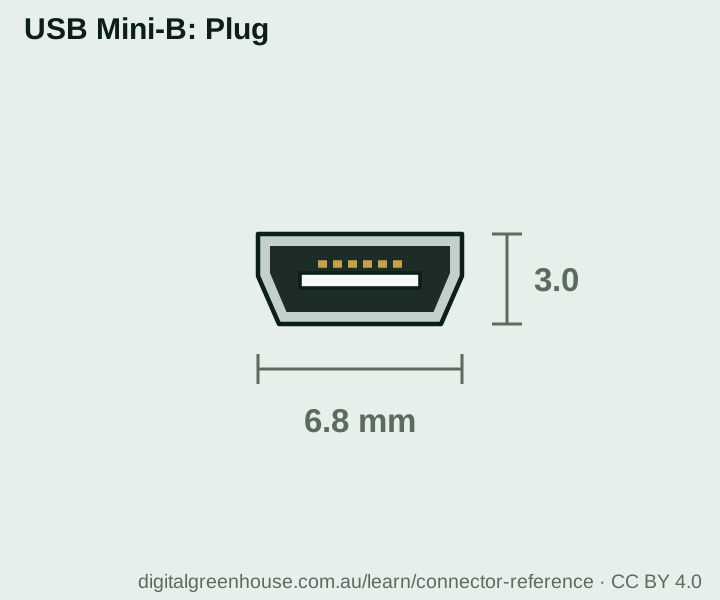
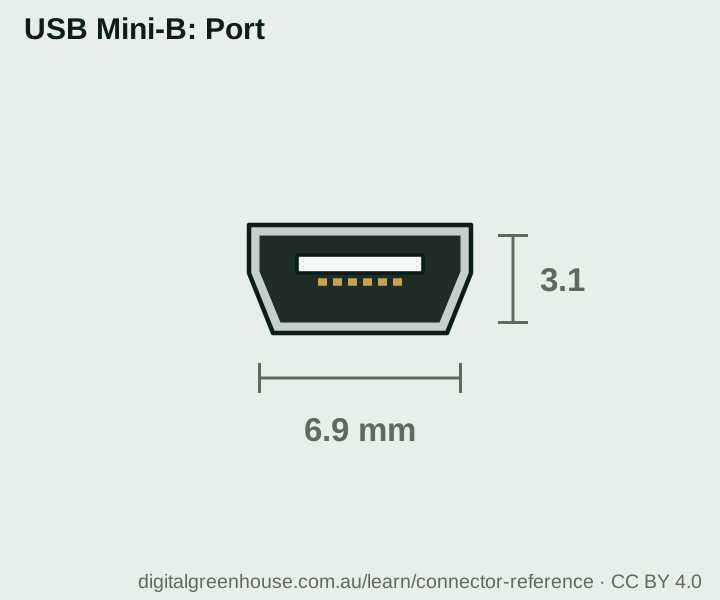
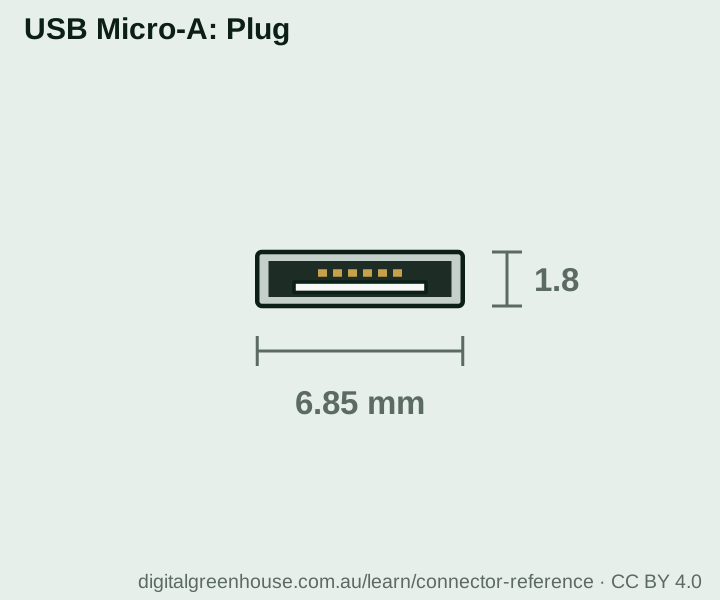
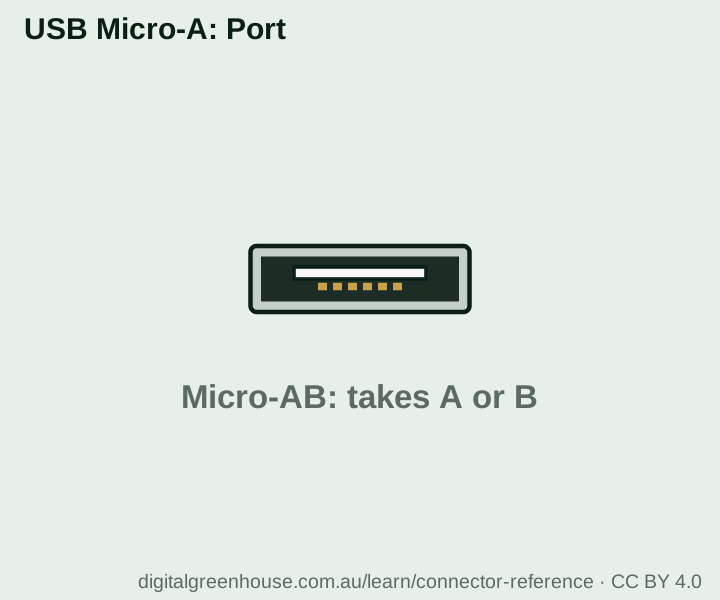
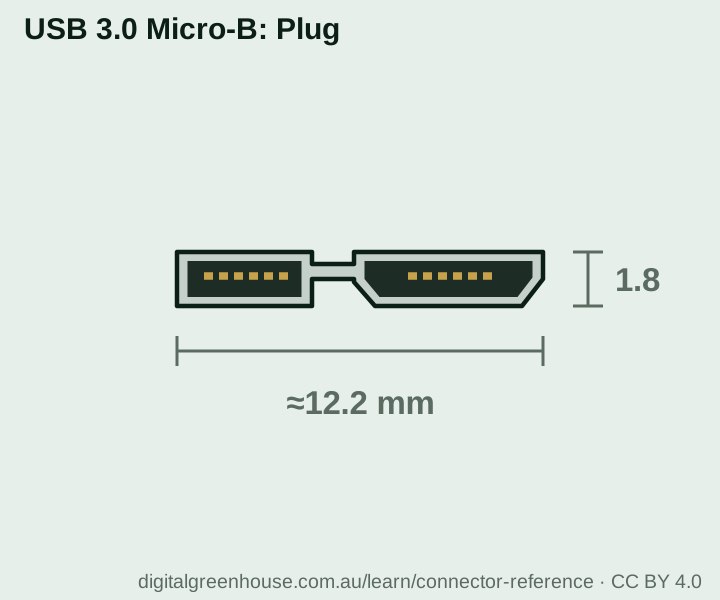
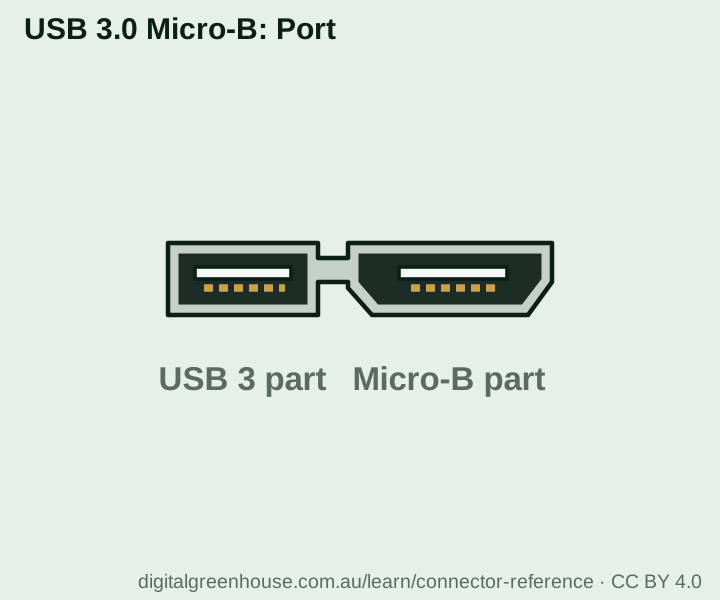
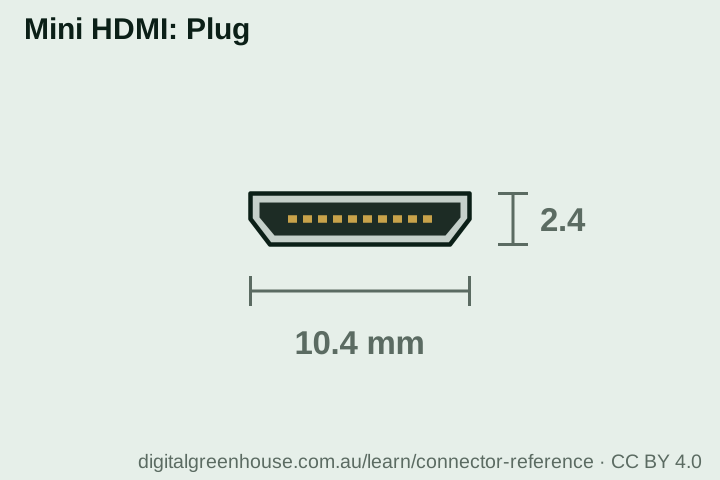
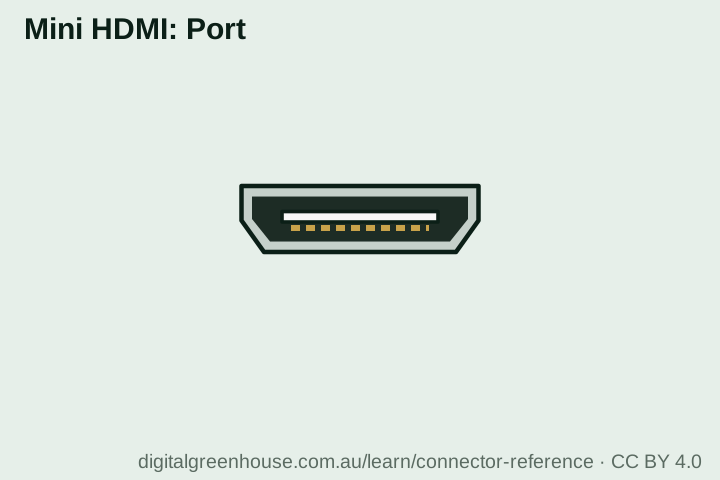
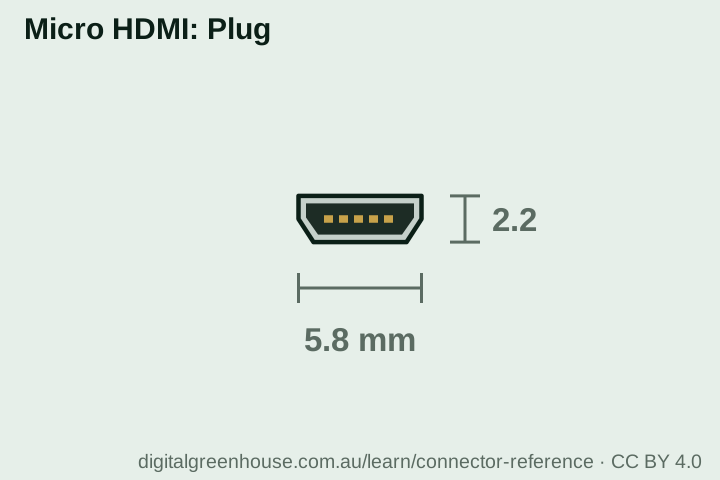
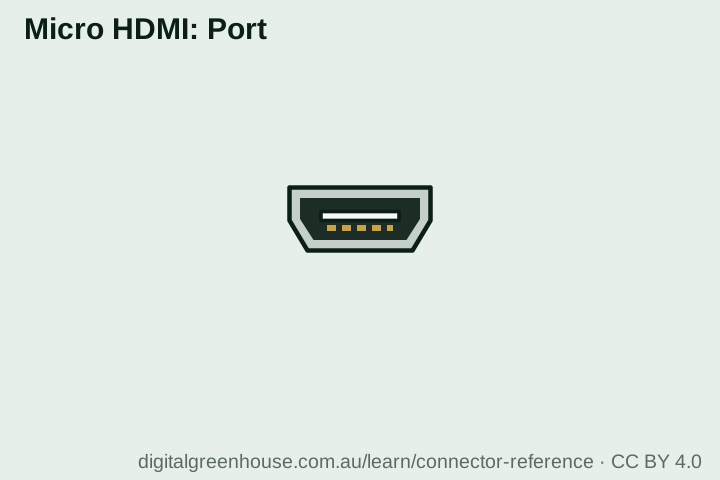
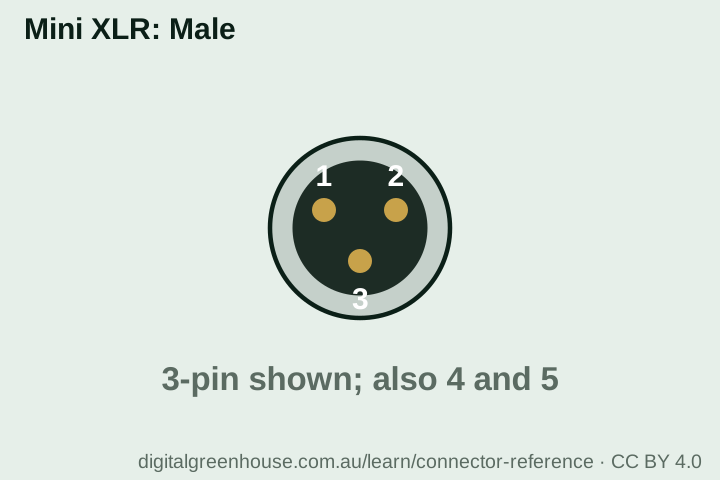
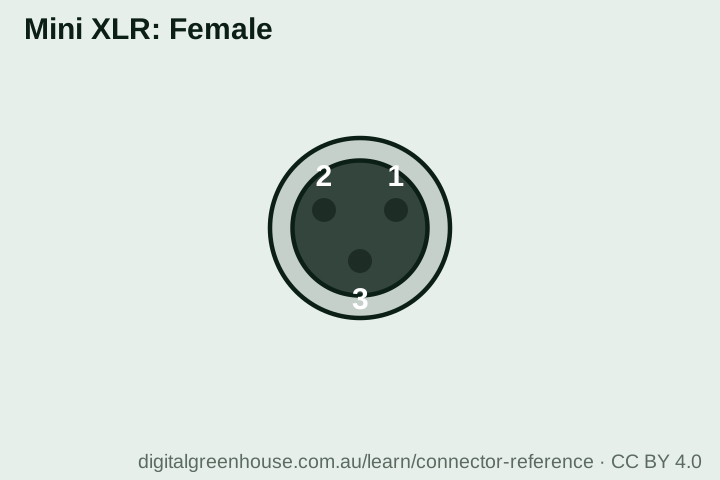
USB On-The-Go (2001) let a phone or camera act as a host so you could plug a flash drive or keyboard into it. That is what the fifth pin in Mini and Micro connectors is for, and what the Micro-A plug and Micro-AB port exist to signal. USB-C made the whole idea ordinary: either end can be host, device, power source or power sink, and they sort it out between themselves.
One host can address up to 127 devices, through hubs chained up to five deep. A hub shares one port’s speed and — unless it has its own power supply — one port’s power between everything plugged into it, which is why drives and webcams misbehave on unpowered hubs.
9. Cable length
To go further, use an active extension cable or a powered hub part-way along; each one restarts the count. Plain passive extension leads beyond these lengths are the classic cause of devices that connect, drop out and reconnect.
10. Colour codes
Only blue is in the specification; the rest are conventions that manufacturers follow, bend or ignore, and plenty of well-made equipment uses no colour at all. Treat colour as a hint and the port’s printed label — “SS”, “10”, a battery icon — as the evidence.
11. What’s inside the cable
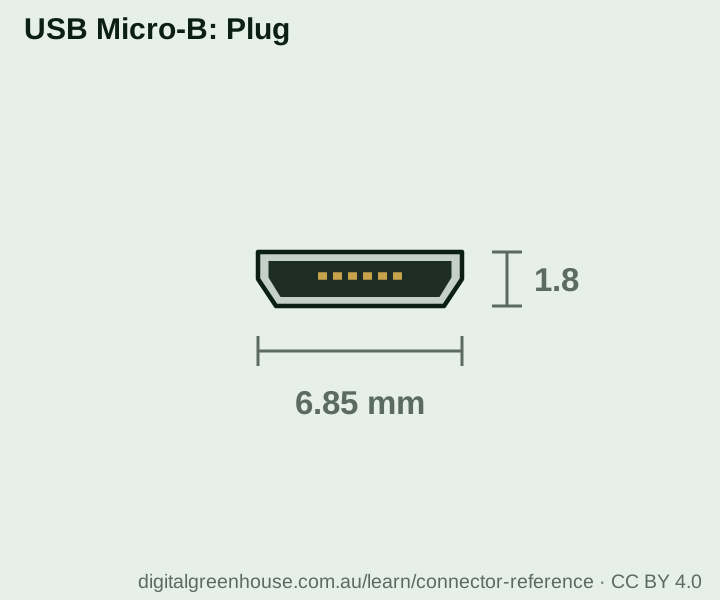
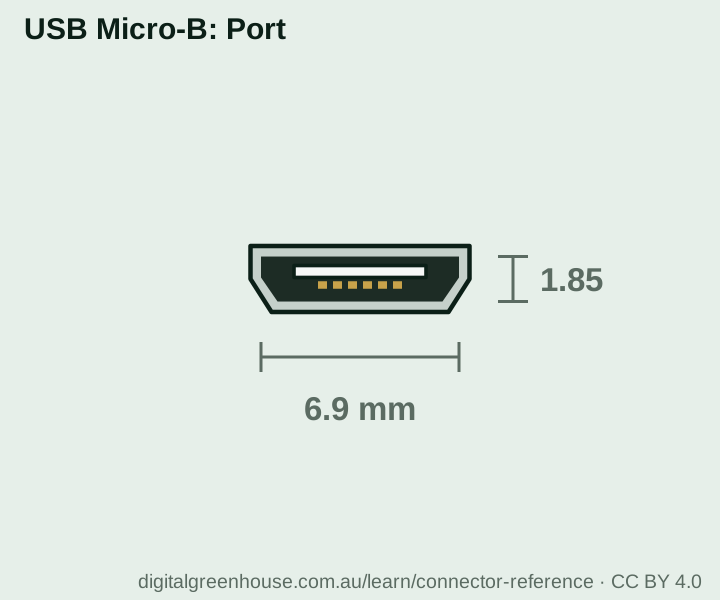
That is a complete USB 2.0 cable: four wires, with the two data wires twisted together. Mini and Micro connectors add a fifth pin, ID, used only for On-The-Go. USB 3 adds five more wires — a transmit pair, a receive pair and a ground between them — which is why USB 3 cables are thicker and stiffer and why the plugs have nine contacts. USB-C doubles up again so the plug can go in either way, and adds two CC wires that carry the negotiation described above.
A “charge-only” cable simply leaves the two data wires out. It will charge anything and connect nothing — so if a phone charges but the computer never sees it, try a different cable before blaming either device.

















.jpg)



-USB-C_port_large_FS_PNr%C2%B00842.jpg)




























.jpg)


.jpg)
.jpg)


.jpg)















.jpg)
_to_male_MCX_3958.jpg)







_(10983531466).jpg)
















































_(12311783276).jpg)





.jpg)